A Git patch is a text representation of code changes. You can create one from uncommitted work, the staging area, commits, or the difference between branches. The right command depends on whether you need only the final file changes or also need commit messages and authorship.
This guide covers both common patch formats, shows how to validate them before applying, and explains three ways to open or share the result online.
Quick answer: create a patch from your current changes
Create a patch from unstaged changes:
git diff > changes.patchCreate a patch from staged changes:
git diff --cached > staged-changes.patchCreate a patch from the most recent commit, including commit metadata:
git format-patch -1 HEADUse git diff when you want one combined unified diff. Use git format-patch when you want email-style patches that preserve commit boundaries, messages, authorship, and dates.
git diff versus git format-patch
| Command | Output | Preserves commit metadata? | Usually applied with | Best for |
|---|---|---|---|---|
git diff | One unified diff | No | git apply | Reviewing or transferring final file changes |
git format-patch | One email-style patch per commit, or an mbox stream | Yes | git am | Sending commits while preserving authorship and messages |
The file extension does not define the format by itself. A file named changes.patch can still contain ordinary git diff output. Inspect the contents and choose the apply command based on the format, not only the filename.
Create a patch from uncommitted changes
git diff without commit arguments compares the working tree with the index. In practical terms, it captures changes that have not been staged:
git diff > working-tree.patchTo include only one file or directory, add a pathspec after --:
git diff -- src/parser.ts > parser.patch
git diff -- src/ tests/ > source-and-tests.patch
New untracked files do not appear in ordinary git diff output. Stage them first if they belong in the patch, then export the staged changes:
git add src/new-file.ts
git diff --cached > changes-with-new-file.patch
Create a patch from staged changes
Use --cached (or its synonym --staged) to compare the index with HEAD:
git diff --cached > staged-changes.patchThis is a useful pre-commit workflow because the patch contains exactly what the next commit would include, assuming you make no further staging changes.
Review it before sharing:
git diff --cached --stat
git diff --cached
Create a patch from a commit
To export only the file changes introduced by the latest commit:
git diff HEAD~1 HEAD > latest-commit.diffTo preserve the commit message, author, and other email-style metadata, use:
git format-patch -1 HEADGit writes a file with a name similar to:
0001-short-commit-subject.patchFor the last three commits:
git format-patch -3 HEADFor one mailbox-style file containing the series:
git format-patch --stdout -3 HEAD > series.mboxFor more on commit metadata and patch series, read the dedicated git format-patch guide.
Create a patch between branches
These two comparisons answer different questions:
git diff main..feature > branch-tips.diff
git diff main...feature > feature-since-branch-point.diff
The two-dot form compares the two branch tips directly. The three-dot form compares the merge base with the second branch, which is often what you want when reviewing what a feature branch introduced since it diverged from main.
Confirm which commits and files you intend to include before exporting:
git log --oneline main..feature
git diff --stat main...feature
The Git diff cheat sheet has more examples for commits, paths, words, renames, and binary changes.
Check a patch before applying it
Treat an incoming patch like source code. It can modify scripts, dependency manifests, CI configuration, and other executable files.
Inspect its summary:
git apply --stat changes.patch
git apply --numstat changes.patch
Check whether a unified diff applies cleanly without changing the working tree:
git apply --check changes.patchIf the check succeeds, apply it:
git apply changes.patchFor a patch created with git format-patch, use git am to preserve its commit metadata:
git am 0001-short-commit-subject.patchIf git am stops on a conflict, resolve it and run git am --continue, or abandon the operation with:
git am --abortUse a clean working tree or a disposable branch when testing patches from someone else.
Open or share the patch online
Raw patch text works well for tools and archives, but a browser viewer is easier for people reviewing several files or large hunks. SharePatch accepts unified diffs, .diff files, .patch files, git format-patch output, mailbox-style series, and public raw patch URLs up to 1 MB.
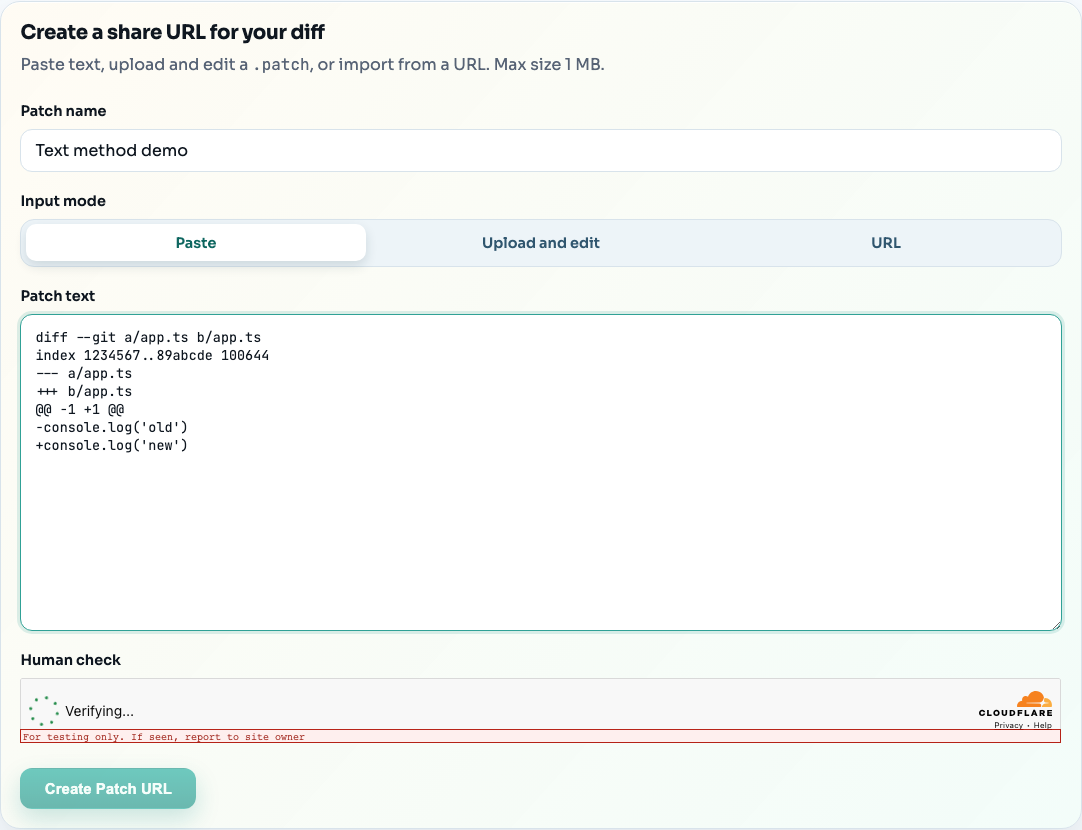
Method 1: paste the patch text
Use this when the diff is already in your clipboard:
- Open the SharePatch online diff and patch viewer.
- Keep the input method on Paste.
- Add a descriptive patch name.
- Paste the unified diff.
- Complete the human check and create the review link.
Method 2: upload a .diff or .patch file
Use Upload and edit when you created a local file:
- Select the generated
.diff,.patch,.mbox, or text file. - Inspect the loaded text and make any necessary edits.
- Create the patch link.
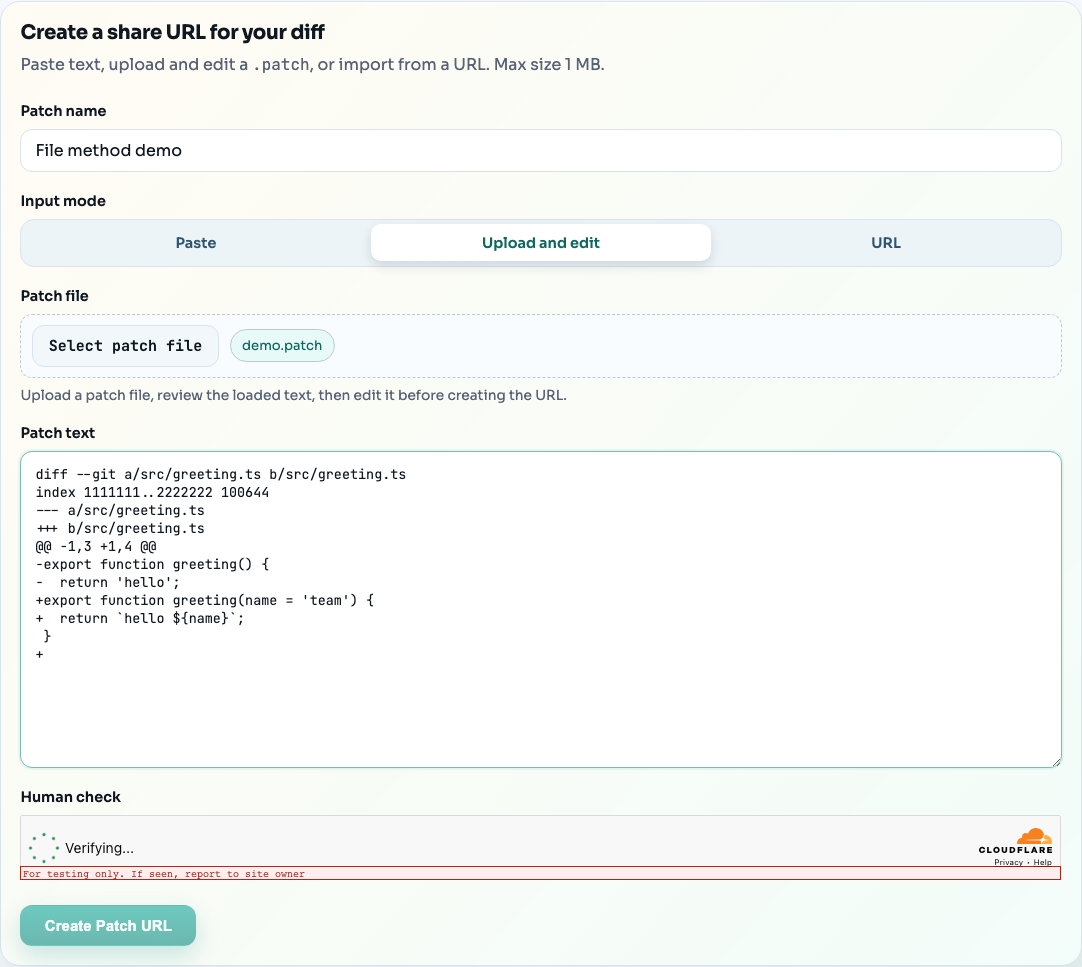
The editable text is what gets submitted. This makes file mode useful when you want to remove an unrelated hunk before sharing, but be careful not to create a patch that no longer represents the source change accurately.
Method 3: import a raw patch URL
Use URL when the patch already lives at a public raw HTTP endpoint:
- Copy the direct raw URL, not an HTML preview page.
- Paste it into the URL field.
- Name the patch and create the link.
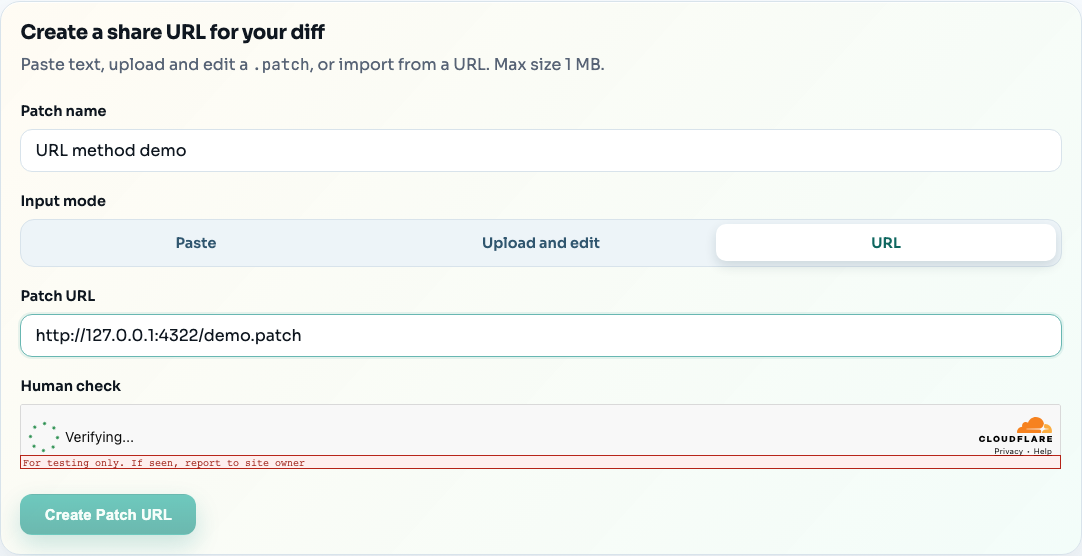
GitHub pull requests expose convenient .diff and .patch URLs. The GitHub PR download guide shows the public URL and authenticated API options.
Privacy and sharing checklist
Before uploading or sharing a patch:
- scan for credentials, tokens, private URLs, customer data, and generated secrets
- confirm the patch contains only the intended files and commits
- remember that an unlisted URL is not access control
- use your repository host or another authenticated system for confidential review
- revoke any exposed secret rather than merely deleting it from the patch
SharePatch links are excluded from search indexing, but anyone who has the link can open them.
Common patch problems
The patch is empty
You may have exported the wrong comparison. Check git status, then decide whether the changes are unstaged (git diff) or staged (git diff --cached).
A new file is missing
Ordinary git diff does not include untracked files. Stage the new file and export with git diff --cached, or commit it and use git format-patch.
git apply --check fails
The target files may have changed, the patch may target a different base commit, or whitespace/path settings may differ. Confirm the intended base rather than forcing the patch blindly.
git am says the patch format is invalid
The file may contain plain unified diff output rather than an email-style patch. Apply ordinary git diff output with git apply; use git am for git format-patch output.
URL import returns HTML
The URL likely points to a web preview, login page, or error page instead of raw patch text. Open the URL directly and confirm that the response begins with patch content such as diff --git or email headers followed by a diff.
Recommended default workflow
For a simple review artifact:
git diff --cached > changes.patch
git apply --check changes.patch
Then upload changes.patch, review it in the browser, and share the unlisted link. Choose git format-patch plus git am instead when preserving individual commits and authorship matters.